 LINKINFO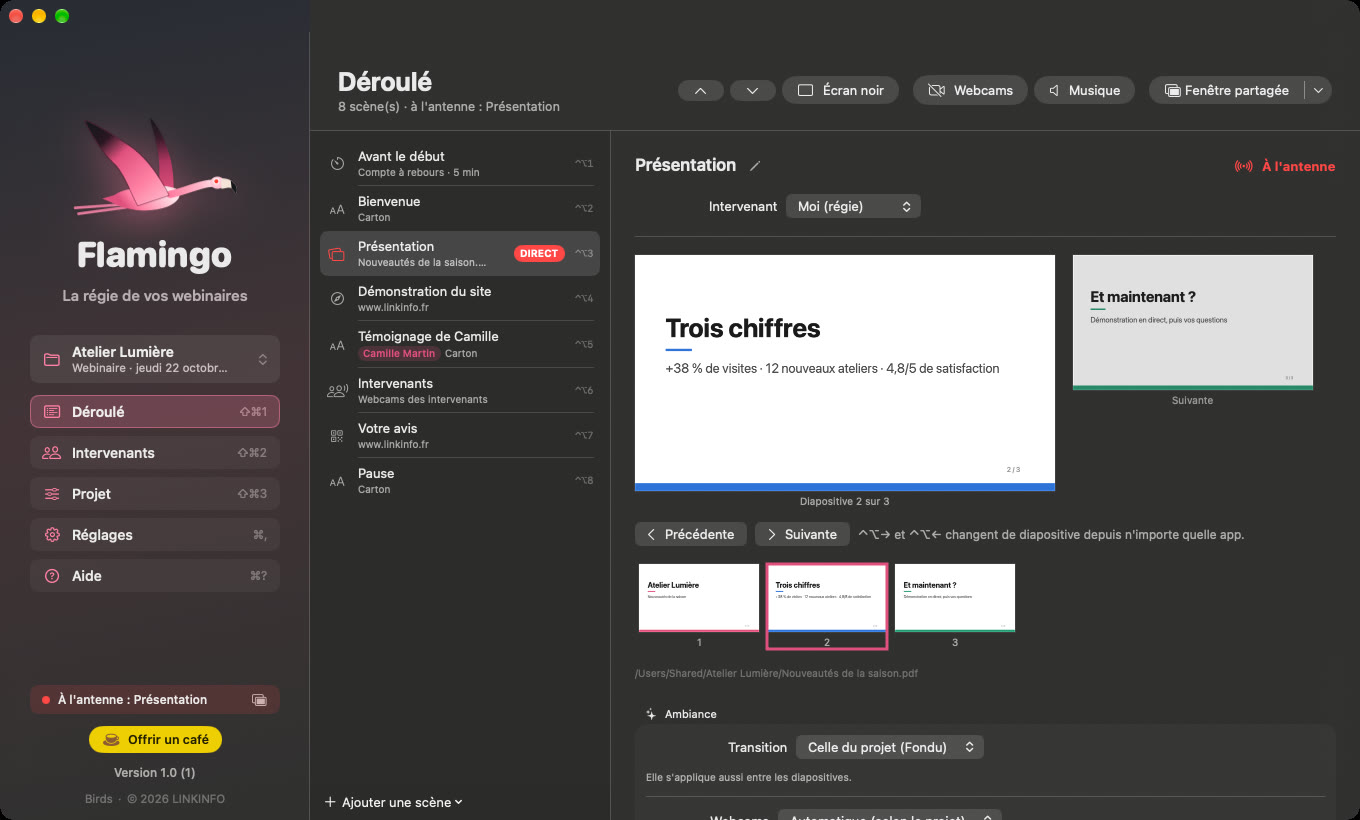
Sharing a PowerPoint, then a demo in the browser, then a video during a Teams webinar means juggling windows in front of everyone. Flamingo prepares a single window to share: the stage. On it you move through your slides (PowerPoint, Keynote, PDF), videos, web pages, an app's window, a countdown, a QR code or a title card, with transitions and music. Your webcam sits in a corner and whoever is speaking comes on screen. Your co-presenters get a link: with nothing to install, they add their slides and join the live show with their webcam. Flamingo is free, with no ads and no account.
What Flamingo does
One window to share
In Teams you share the stage once; Flamingo changes what it shows.
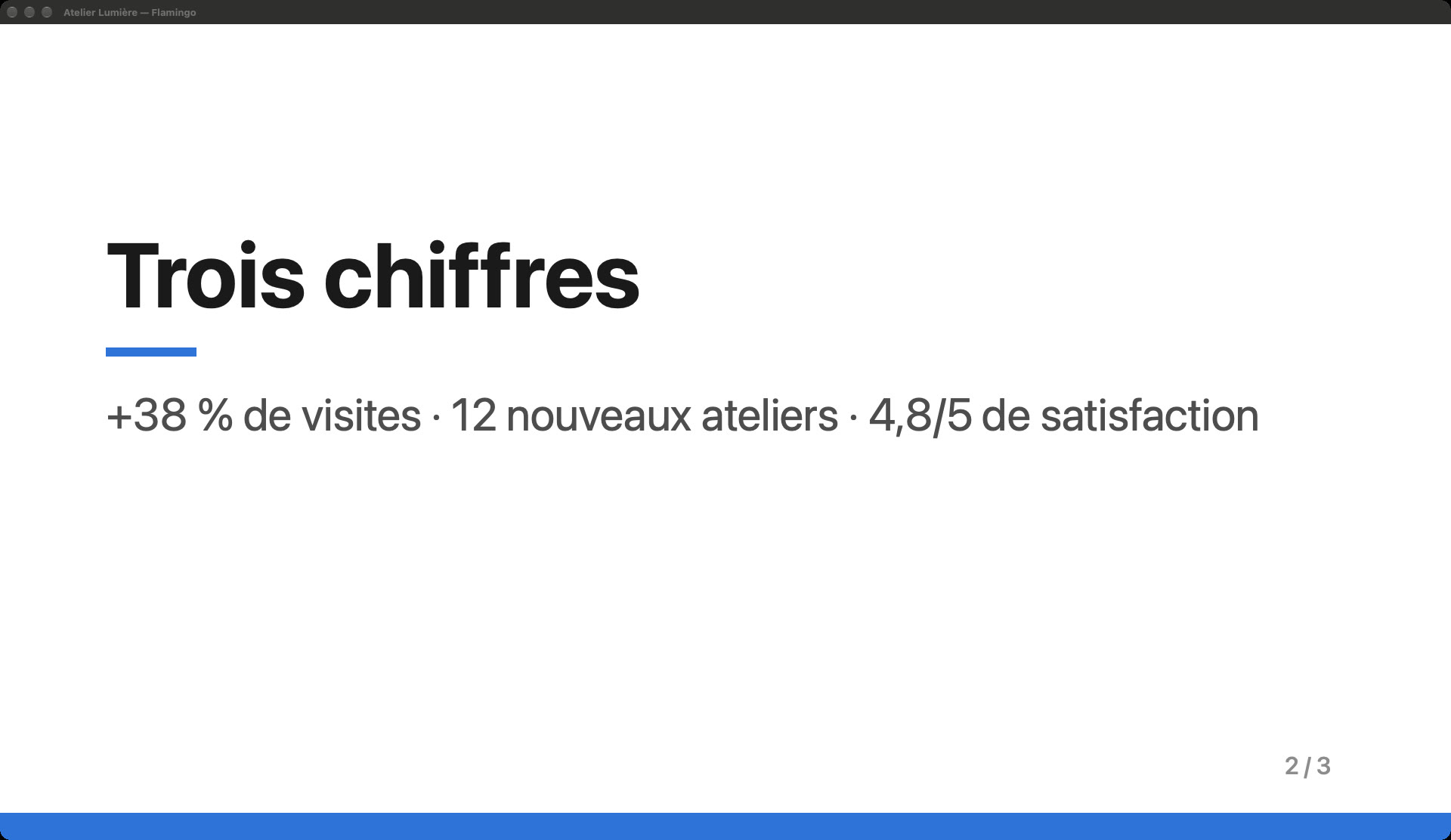
- Slides from PowerPoint, Keynote or PDF: Flamingo converts them and shows them in 16:9, without PowerPoint's presenter mode.
- Videos (MP4, MOV…), live web pages, and an app's window shown live for a demo.
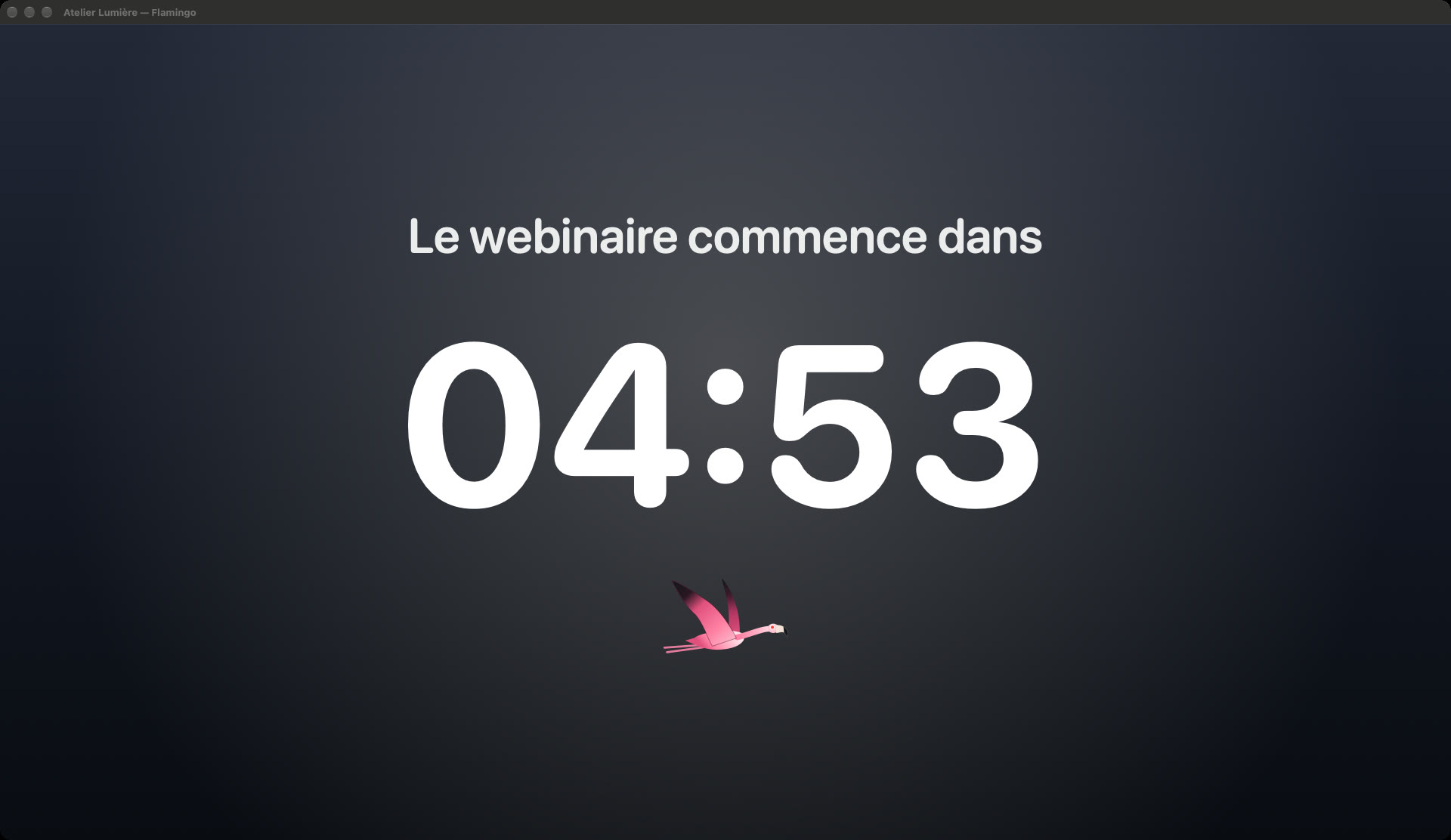
- Countdown before the start, QR code for a survey, title cards (break, questions, a speaker's name).
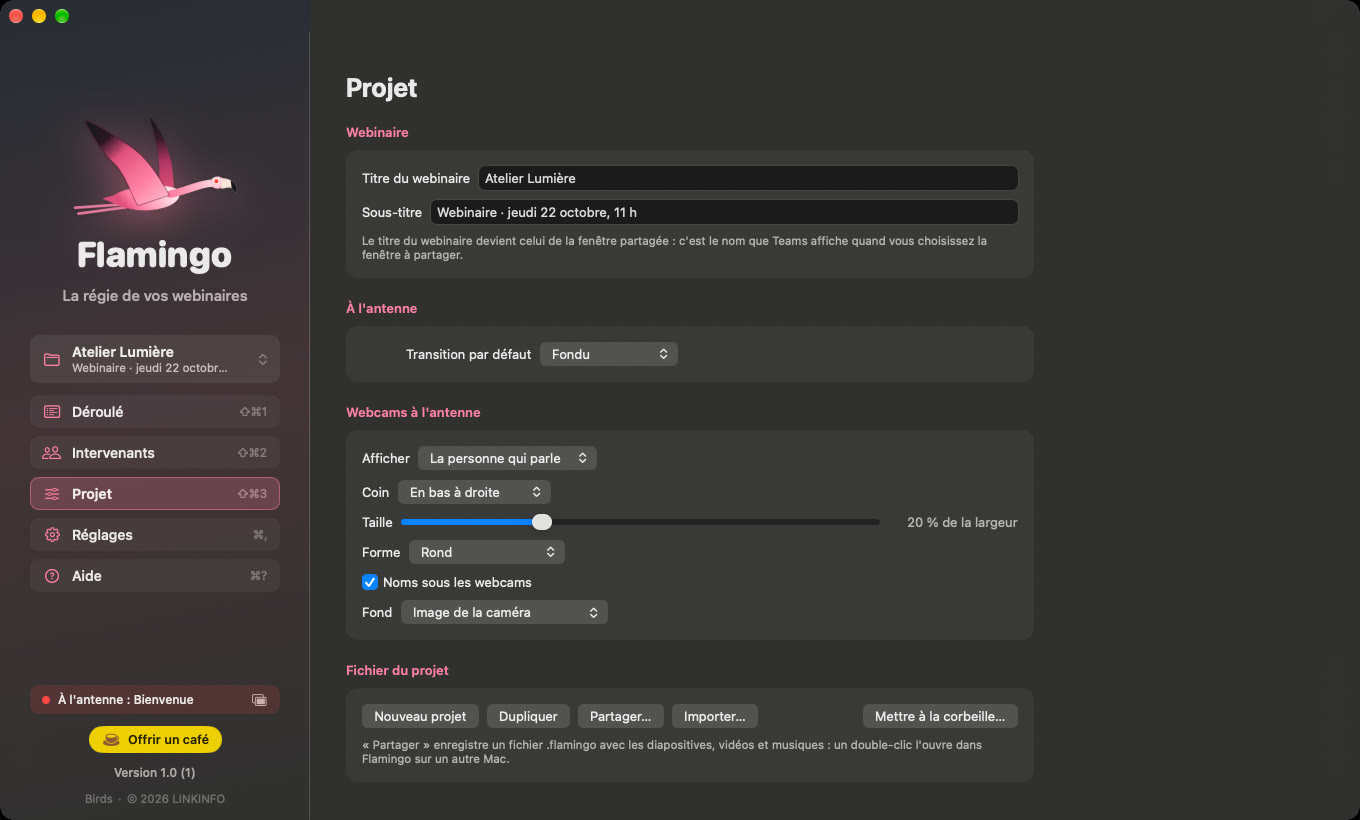
- The webinar's title becomes the window's name: the one Teams lists when you choose what to share.
A real control room
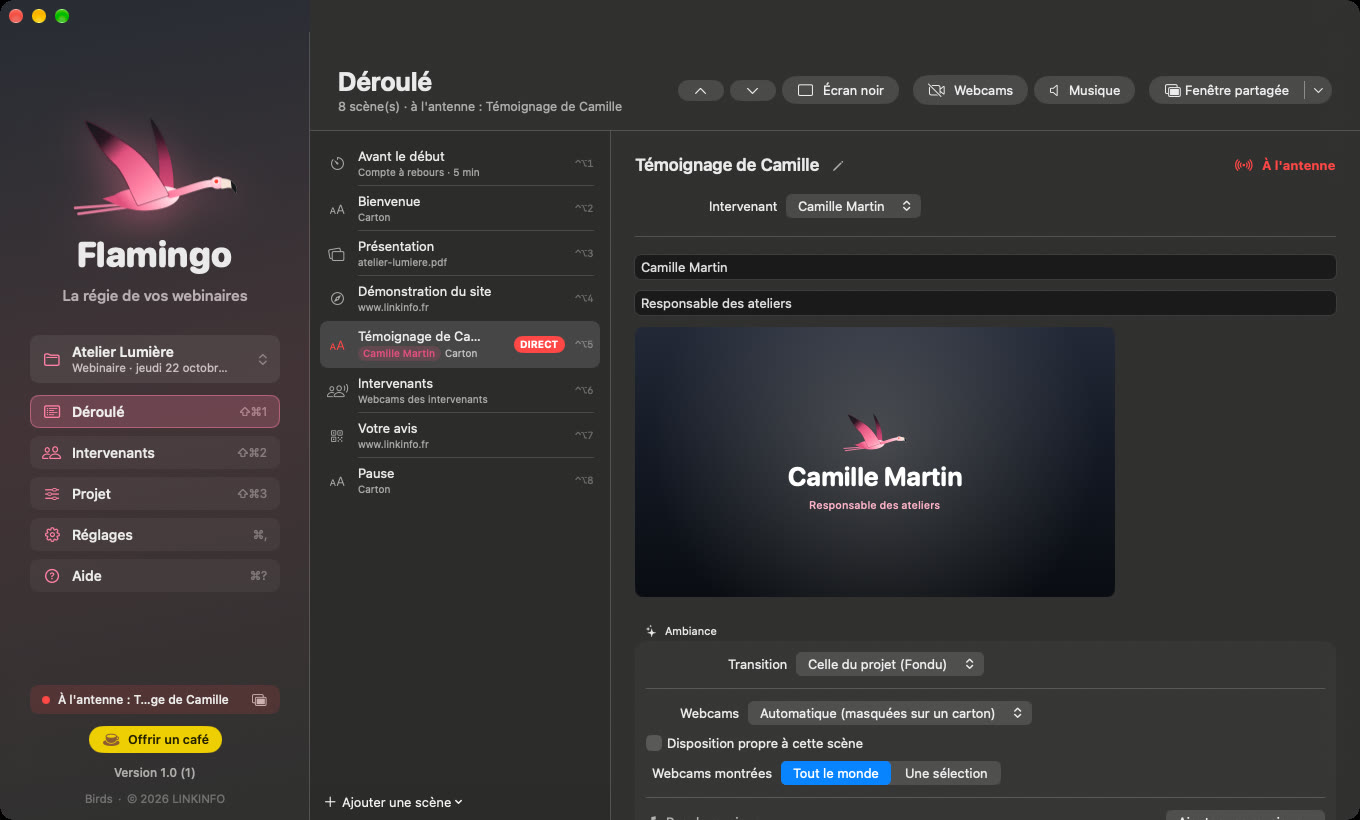
The run of show on the left, the prepared scene on the right, the live show from the keyboard.
- Double-click a scene: it goes on air with the chosen transition (fade, push…).
- Global shortcuts that work even with Teams in front: scenes 1 to 9, next slide, black screen.
- Background music per scene, with fades and a master volume.
- Separate projects for each webinar, shared with a colleague as a single .flamingo file.
Webcams on screen
Your webcam and your guests' appear right on the stage.
- Your webcam in a corner, round or rectangular, at the size you like.
- Whoever speaks comes on screen: Flamingo listens to microphone levels, without jumping on a “hmm”.
- Speakers scene: everyone full size, for introductions and questions.
- Background replaced if you wish: blur, color, image, green screen for keying, or transparent over the stage.
Co-presenters, with nothing to install
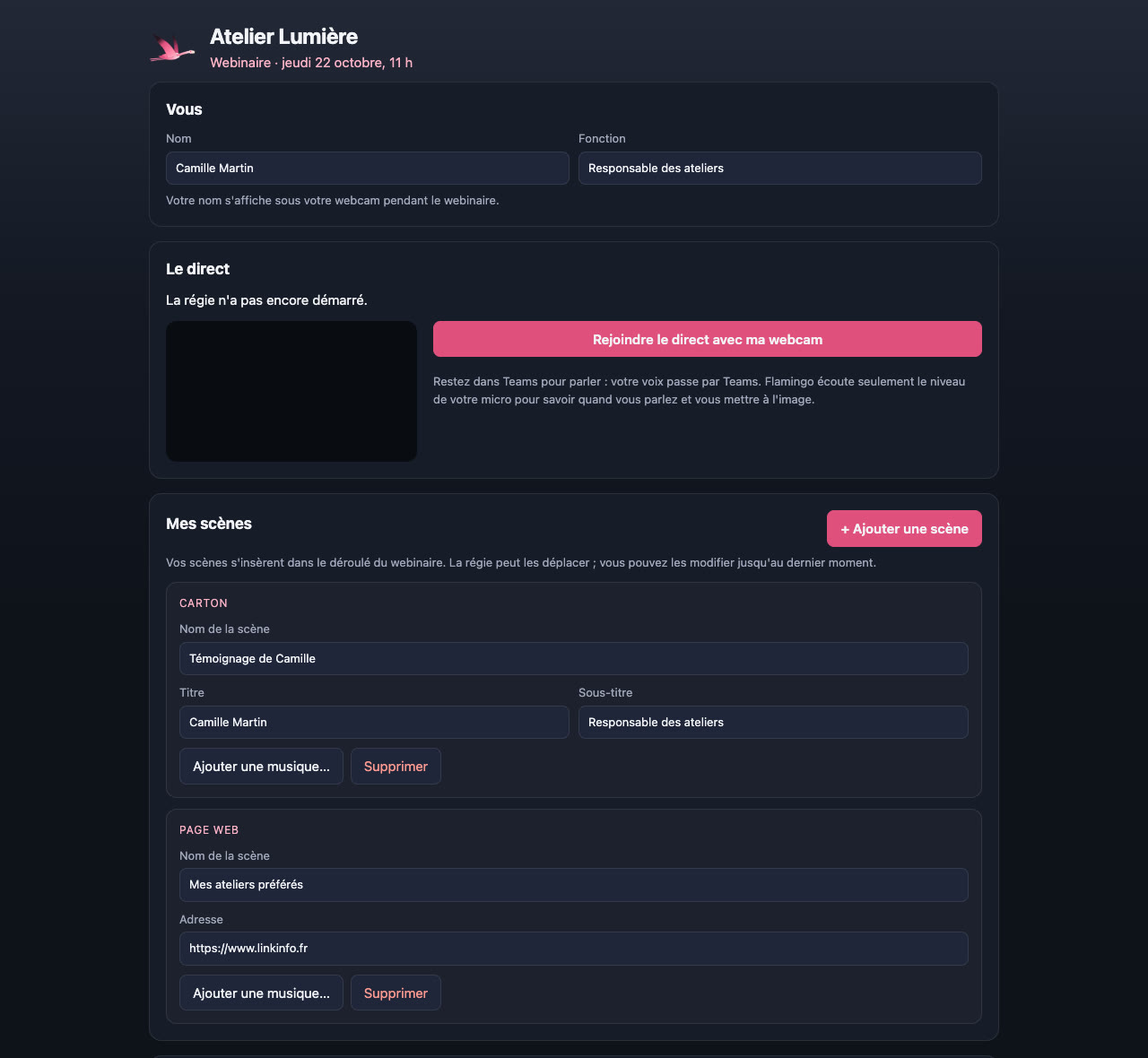
Everyone prepares their scenes from their browser, up to the last minute.
- Put the project online and invite your speakers: each gets a link, to copy or send by email.
- From their page, a speaker adds slides, videos, an introduction card, and sees the whole run of show.
- They join the live show with their webcam: their video appears in your stage, their voice stays in Teams.
- You stay in charge: you move their scenes in the run of show and can revoke a link at any time.
In pictures

A coffee for what's next
Flamingo is free, ad-free, and will stay that way. I develop it in my spare time: every coffee helps fund the next versions, fixes and new features, and tells me the app is useful to you.
Installation
- Download the .zip fileIt unzips on its own in the Downloads folder.
- Drag Flamingo to ApplicationsIn the Finder, into your Mac's Applications folder.
- Open FlamingoThe app is signed and notarized by Apple: it opens without a warning.
Requirements
- Free, with no ads and no account.
- Works with Teams, but also Zoom, Google Meet or Webex: just share Flamingo's window.
- PowerPoint or Keynote slides: the matching app must be installed on the Mac for the conversion (a PDF needs nothing).
- Available in French, English and Spanish: the app follows the Mac's language, or the one chosen in its settings.
- macOS 14 Sonoma or later, on a Mac with Apple silicon or Intel; automatic updates from within the app.


